Google Workspace Masterclass
Master Google Workspace tools for communication, collaboration, productivity, virtual meetings, document management, reporting, teamwork, and digital operations across RADA programs and departments.
Start Learning6+
Core Learning Modules
15+
Training Videos
100%
Cloud Collaboration
Remote
Digital Workplace Skills
1. Introduction to Google Workspace
Google Workspace is a cloud-based productivity system developed by Google. It allows organizations to communicate, collaborate, manage files, create documents, conduct virtual meetings, and coordinate tasks online from any device connected to the internet.
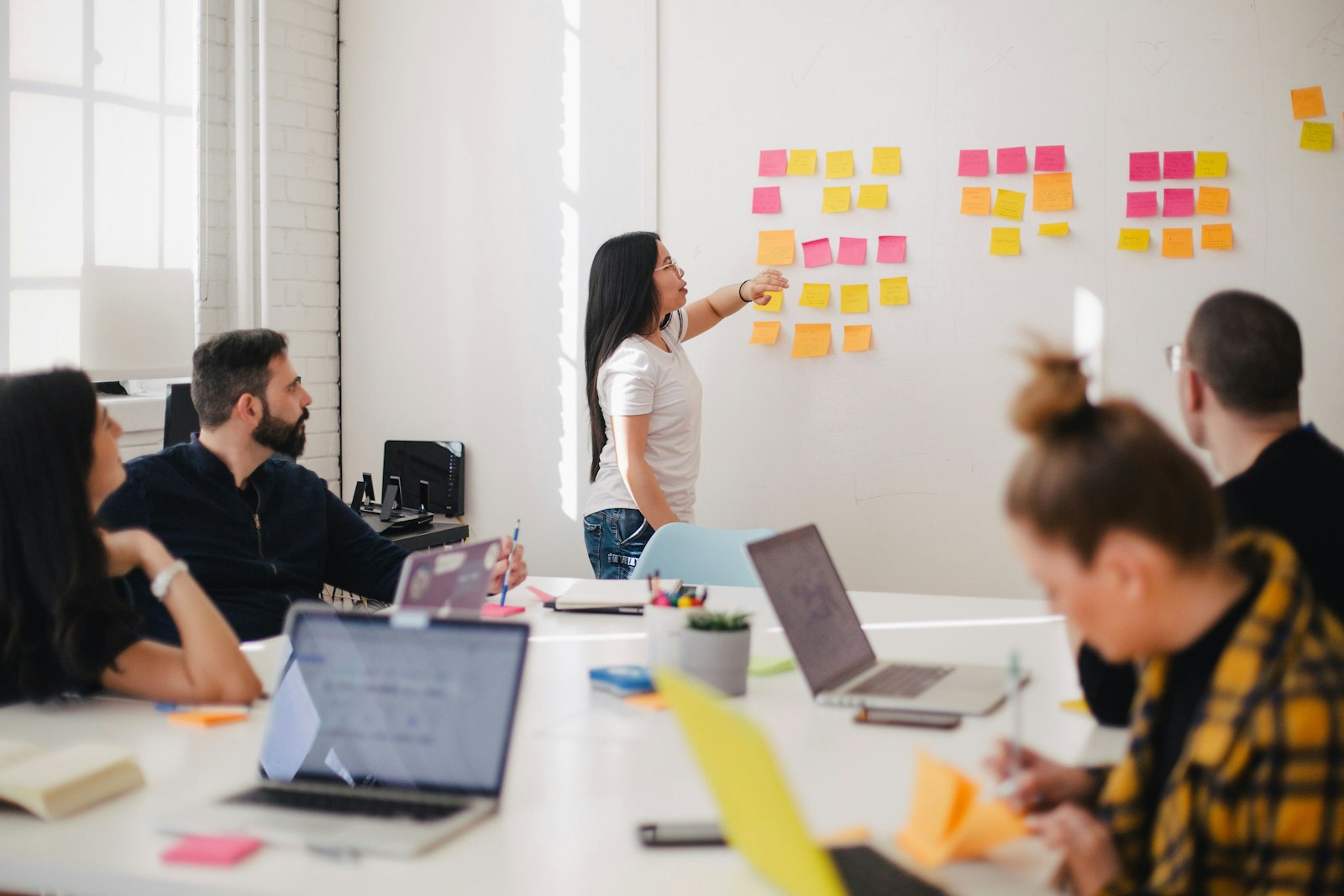
Cloud Accessibility
Access files securely from any location using internet-connected devices.
Real-Time Collaboration
Teams edit and review documents together instantly.
Automatic Saving
All changes save automatically to reduce data loss.
Centralized File Management
Store organizational documents in one structured environment.
Security Controls
Manage permissions for confidential information.
Remote Productivity
Support flexible work and virtual collaboration.
2. Google Drive and Cloud File Management
Google Drive stores organizational files securely online and supports collaboration, file sharing, remote access, and structured digital storage management.

Method 1
Open browser → Visit drive.google.com → Sign in
Method 2
Open Google homepage → Click Apps Grid → Select Drive
| Feature | Purpose |
|---|---|
| My Drive | Personal organizational storage area |
| Shared With Me | Files shared by colleagues |
| Recent | Recently accessed files |
| Trash | Deleted files recovery |
- Real-time editing
- Commenting and suggestions
- Version history tracking
- Folder sharing permissions
- Secure file access control
3. Google Docs for Workplace Documentation
Google Docs enables staff to create reports, proposals, meeting minutes, concept notes, and official workplace documents collaboratively online.
Automatic Saving
Changes save instantly during editing.
Document Collaboration
Multiple staff members edit documents simultaneously.
Version History
Track and restore previous document versions.
Commenting Tools
Review and suggest document improvements.
4. Google Sheets and Data Management
Google Sheets supports budgeting, reporting, attendance tracking, financial management, inventory systems, and data analysis.
=SUM(B2:B10)
=AVERAGE(B2:B10)
=COUNT(A1:A20)
Budget Tracking
Monitor organizational expenses and budgets.
Attendance Monitoring
Track participant and staff attendance records.
Automated Calculations
Perform instant calculations and summaries.
Charts and Reports
Visualize data for presentations and reporting.
5. Google Forms and Digital Data Collection
Google Forms supports surveys, assessments, registrations, monitoring tools, staff feedback systems, and event management.
Training Evaluations
Collect participant feedback digitally.
Registration Forms
Manage workshop and event registrations.
Assessments
Conduct quizzes and evaluations online.
Automated Responses
Generate instant response summaries and charts.
6. Google Meet and Zoom Virtual Meetings
Google Meet and Zoom support virtual communication, staff collaboration, remote meetings, webinars, digital trainings, and online project coordination.
| Feature | Purpose |
|---|---|
| Mute/Unmute | Control audio communication |
| Chat | Send instant messages |
| Screen Sharing | Present files and slides |
| Recording | Save meetings for future review |
| Participants | Manage attendees |
Before Meetings
Prepare agenda, links, and presentation files.
During Meetings
Maintain professionalism and active participation.
After Meetings
Share meeting summaries and assigned tasks.
7. Professional Emailing and WhatsApp Communication
Professional communication is essential for effective coordination, teamwork, accountability, reporting, project management, and organizational operations within RADA. Staff members use email and WhatsApp daily for communication, updates, meeting coordination, information sharing, reporting, and collaboration.

Effective Coordination
Improve communication between departments, teams, and field staff.
Documentation
Maintain communication records for accountability and reporting.
Professionalism
Strengthen organizational image and communication standards.
Remote Collaboration
Support teamwork across different locations and projects.
7.1 Professional Email Communication
Email communication is widely used for official workplace communication including reports, meeting invitations, approvals, updates, documentation, and formal discussions.
| Email Section | Purpose |
|---|---|
| Subject Line | Clearly summarizes the email topic |
| Greeting | Professional opening message |
| Body | Main communication content |
| Closing | Professional sign-off and signature |
| Attachments | Supporting documents and files |
Training Report Submission
Request for Meeting Approval
Workshop Attendance Confirmation
Project Documentation Submission
Use Clear Subject Lines
Help recipients understand the email purpose immediately.
Maintain Professional Tone
Use respectful and formal workplace communication.
Proofread Messages
Review spelling, grammar, and attachments before sending.
Respond Promptly
Maintain timely communication and coordination.
Dear Team,
Please find attached the updated training materials for the upcoming staff capacity building session scheduled for Friday.
Kindly review and provide feedback before 4 PM tomorrow.
Best Regards,
Moses Kangong
| Mistake | Professional Solution |
|---|---|
| Using vague subject lines | Use specific and descriptive titles |
| Sending incomplete emails | Review content and attachments carefully |
| Using informal language | Maintain workplace professionalism |
| Ignoring email responses | Respond within reasonable time |
7.2 WhatsApp for Workplace Communication
WhatsApp is widely used at RADA for fast communication, field coordination, project updates, emergency communication, media sharing, and staff collaboration.

Meeting Coordination
Share meeting reminders, links, and schedules quickly.
Field Communication
Coordinate field activities and emergency updates.
Media Sharing
Share reports, documents, photos, and videos instantly.
Project Collaboration
Maintain communication among project teams and departments.
- Use respectful and professional language
- Avoid unrelated discussions in official groups
- Share accurate and verified information
- Respect organizational communication standards
- Protect confidential organizational information
- Avoid excessive messaging and spam
Please remember today's staff meeting begins at 2 PM. Kindly join 10 minutes early and review the attached agenda before the session.
| Best Practice | Purpose |
|---|---|
| Create clear group names | Improve organization and identification |
| Assign administrators responsibly | Improve group management |
| Maintain workplace focus | Reduce distractions and unrelated discussions |
| Archive inactive groups | Improve communication organization |
| Risk | Prevention |
|---|---|
| Sharing misinformation | Verify information before sharing |
| Confidentiality breaches | Protect sensitive information carefully |
| Unprofessional communication | Maintain respectful communication standards |
| Information overload | Keep communication concise and relevant |
7.3 Digital Communication Best Practices
Clarity
Communicate information clearly and directly.
Professionalism
Maintain respectful workplace communication standards.
Timeliness
Respond to communication within reasonable time.
Confidentiality
Protect sensitive organizational information.
Accuracy
Verify information before sharing publicly.
Collaboration
Use communication tools to improve teamwork and coordination.